Your robot, live on your laptop.

An app for FTC robots. Watch the robot drive, tune it, check it and deploy code.

Free, for Windows 10 and 11, and Mac (alpha).

We built Swervely in our own pit. The field, graphs, tuning, checks and deploy all sit in one window, so the few minutes between matches go to the robot.

Three steps to get connected

  1. Install Swervely

    Grab the installer for Windows or Mac from the download page and run it.

  2. Add the library to TeamCode

    Paste our lines into build.dependencies.gradle and deploy.

    build.dependencies.gradlerepositories {
        maven { url 'https://swervely.vercel.app/maven' }
    }
    
    configurations.all {
        exclude group: 'com.acmerobotics.dashboard'
    }
    
    dependencies {
        implementation 'com.nomadicdragons.swervely:robot:1.2.0'
    }
  3. Connect

    Plug into the Control Hub's USB-C port, join the robot's Wi-Fi, or click Simulator. It reconnects by itself after a deploy or a pulled cable.

What's in the app

Watch the robot on the field

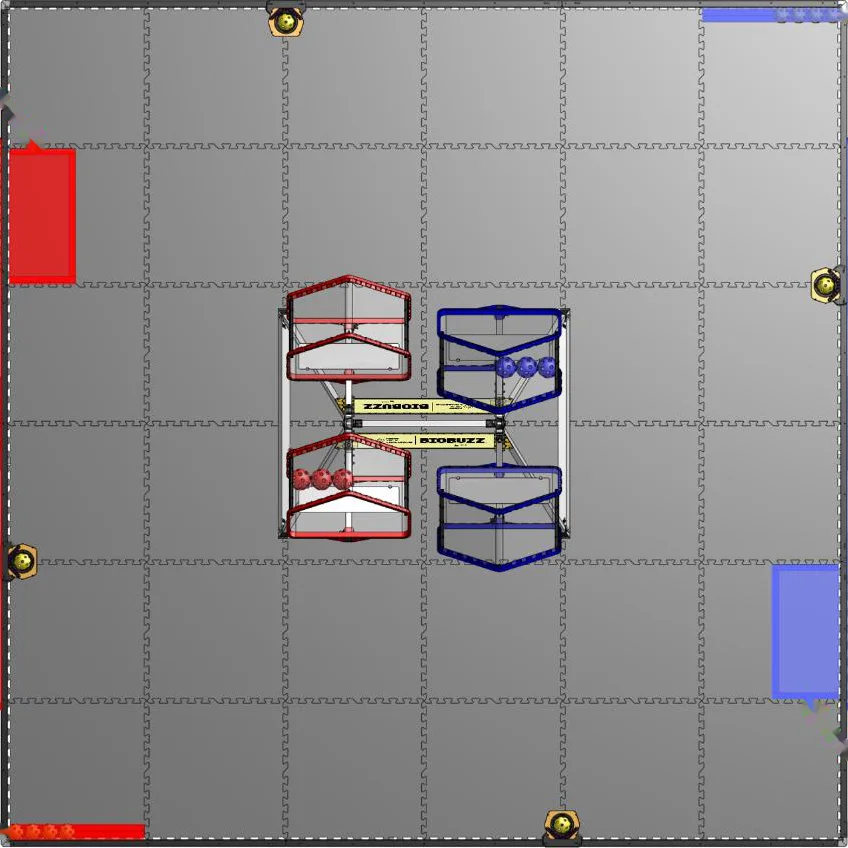
The field shows where the robot is, which way it's facing and where it drove in the last 15 seconds. Around it you get graphs, telemetry and the OpMode log, in panels you can drag around, stack or pop out onto a second monitor.

  • Zoom in, follow the robot, or click to copy a coordinate
  • Pause a graph and zoom in on part of it, or copy it as CSV
  • Built-in workspaces for driving, tuning and reading logs

Change values without a redeploy

You can edit any public static field in an @Config class while the OpMode is running. Save it to the robot and see what changes. Once it looks right, copy the values back into your code as Java.

  • Shows what each value started at
  • The heading step test measures overshoot, rise time and settle time
  • Keeps your last ten runs with the gains they used

Find the weak wheel

The hardware check spins each wheel on blocks and flags slow motors, dead encoders, high current and a tired battery. The odometry check has you push the robot around and tells you if a Pinpoint pod counts backwards or has the wrong offset.

  • Every result is pass, warning or fail, and says why
  • Drive tests compare wheel pairs and explain it in plain words
  • Each run is compared with your last one

Draw your auto, then run it

Draw Pedro Pathing paths right on the field, in Pedro's coordinates. You can bend segments into curves and see the robot's outline along the path. When you switch alliances, mirror it.

  • Run on robot hands the path to the path runner OpMode
  • Copy as Java writes out a full OpMode
  • Then watch the real robot follow the line

Watch the robot on the field

The field shows where the robot is, which way it's facing and where it drove in the last 15 seconds. Around it you get graphs, telemetry and the OpMode log, in panels you can drag around, stack or pop out onto a second monitor.

  • Zoom in, follow the robot, or click to copy a coordinate
  • Pause a graph and zoom in on part of it, or copy it as CSV
  • Built-in workspaces for driving, tuning and reading logs

Change values without a redeploy

You can edit any public static field in an @Config class while the OpMode is running. Save it to the robot and see what changes. Once it looks right, copy the values back into your code as Java.

  • Shows what each value started at
  • The heading step test measures overshoot, rise time and settle time
  • Keeps your last ten runs with the gains they used

Find the weak wheel

The hardware check spins each wheel on blocks and flags slow motors, dead encoders, high current and a tired battery. The odometry check has you push the robot around and tells you if a Pinpoint pod counts backwards or has the wrong offset.

  • Every result is pass, warning or fail, and says why
  • Drive tests compare wheel pairs and explain it in plain words
  • Each run is compared with your last one

Draw your auto, then run it

Draw Pedro Pathing paths right on the field, in Pedro's coordinates. You can bend segments into curves and see the robot's outline along the path. When you switch alliances, mirror it.

  • Run on robot hands the path to the path runner OpMode
  • Copy as Java writes out a full OpMode
  • Then watch the real robot follow the line

Use the AI assistant you already have

The AI panel runs your assistant next to the field and gives it Swervely's tools. From Settings you can add the same tools to the other AI apps on your laptop.

  • Claude Code
  • Codex
  • Gemini CLI
  • Copilot CLI
  • opencode
  • Claude Desktop
  • Cursor
  • VS Code
  • Windsurf
  • Zed
Weak wheel?Swervely tools

Connect to the simulator.

ConnectSwervelysimDone

Connected. The robot is on the simulator field and ready to go.

It twists when it strafes. Can you check the wheels?

Hardware checkSwervely1 fail, 0 warn, 6 passDone
  • fl 30% slower than the median wheel
  • fr Speed, current and encoder look normal.
  • Battery Charged, and holds up with the motors running.

The front left wheel is about 30% slower than the rest. On the simulator that's FLStrength set to 0.7 in the Simulator group. Should I run the drive tests to see how much it twists?

The real robot needs a yes

  • Moving the real robot, changing its tuning values or deploying code is refused until the assistant says you agreed.
  • One setting keeps the assistant on the simulator, so it can't reach the real robot at all.
  • Chats are saved. Close the app at the end of the meeting and pick up the same chat next time.
  • connect
  • overview
  • opmode
  • robot_buttons
  • config
  • telemetry
  • wait_for
  • drive
  • hardware_check
  • heading_step
  • run_path
  • odometry_check
  • recordings
  • settings
  • hub

Drive it from the laptop

Plug a gamepad into the laptop, or just use the keyboard. On the simulator driving is field-centric, and on your robot it drives the way your TeleOp does. You can try it on the field here.

  • Esc stops it any time
  • It stops if you switch to another window
  • It stops if the connection drops or the gamepad gets unplugged
  • When it stops, the sticks go back to centre
Driving itself
X
0.0in
Y
0.0in
Heading
0deg

Field-centric, like the simulator's TeleOp, so up the screen is always forward.

Plus a few more tools

Common questions

Didn't find your answer? Email us and someone on the team will write back.

Is Swervely free?

Yes. There's no paid version and you don't need an account.

Is it open source?

No, the source code isn't public.

Is it safe to use on the real robot?

Drive tests, the hardware check, running a path, the heading step and deploying code all ask first on the real robot. Drive asks the first time after each connect. The Init and Start buttons and the robot buttons act right away, like on the Driver Hub. Esc stops driving whenever you want, and driving also shuts off by itself if the window loses focus, the connection drops or the gamepad comes unplugged. You can also keep AI assistants on the simulator only.

Do I have to rewrite my TeamCode?

No. Your @Config values and telemetry keep working. You paste a few lines into one Gradle file, or let Swervely add them, and deploy. For the field and live numbers your OpMode sends X, Y and Heading, and the app shows you the code if it doesn't.

Does it work with Blocks or OnBot Java?

Not yet. The robot library installs through Gradle, so it needs an FTC project in Android Studio. The simulator works without one.

Which AI apps work with it?

Inside the app, the AI panel runs Claude Code, Codex, Gemini CLI, Copilot CLI and opencode. You can also install the Swervely tools into Claude Code, Claude Desktop, Codex, Copilot CLI, Cursor, Gemini CLI, VS Code, Windsurf and Zed. For anything else that speaks MCP, copy the entry and paste it in. The AI tools need Node 24 or newer.

Does Swervely collect any data?

It sends some anonymous usage data, and that's on by default. This is the app version, which pages and features get used, and crash signatures. It never sends names, team numbers, code, file paths, telemetry or anything you type to an AI. You can turn it off with one switch in Settings, Privacy. Read the privacy page.

Do I need a robot to try it?

No. Click Simulator and you get a simulated robot on the field with its own TeleOp, checks and path runner. Try it without a robot starts a short tour of it.

Does it run on a Mac or Linux?

Windows 10 and 11, and Mac as an alpha (macOS 12 or newer). Both are on the download page. Linux isn't supported.

Try it before your next meeting.

The simulator works without a robot.