Download Swervely
You need the installer on the laptop, an FTC project in Android Studio, and a few lines in its Gradle file. The guide has every step.
Windows
Mac (alpha)
Free. Older versions are on all releases.
- System
- Windows 10 or 11, 64-bit. The Mac alpha needs macOS 12 or newer.
- Robot code
- An FTC project in Android Studio, on SDK 10.3 or newer. Blocks and OnBot Java aren't supported.
- To build it
- adb, which Android Studio brings, and Java 17 to 22. A new Android Studio's own Java is too new, so install JDK 21.
- Robot
- A Control Hub on USB-C or Wi-Fi
- For the AI tools
- Node 24 or newer
Three steps to the field
Install Swervely
Download it for Windows or Mac and run the installer.
Add the robot library
You need an FTC project in Android Studio. Press Add the library in the app's setup steps, or paste the Swervely lines into build.dependencies.gradle, next to your TeamCode folder. Then deploy. See the lines
Connect
Plug into the Control Hub's USB-C port, join the robot's Wi-Fi, or pick Simulator if you don't have the robot. How to connect
Stuck on one? The guide goes through each step, and what to do when one goes wrong.
Add the robot library
Paste these lines into build.dependencies.gradle, next to your TeamCode folder, and deploy. Delete any old FTC Dashboard line first. The exclude line stops Road Runner and other libraries from bringing it back. It needs FTC SDK 10.3 or newer.
repositories {
maven { url 'https://swervely.vercel.app/maven' }
}
configurations.all {
exclude group: 'com.acmerobotics.dashboard'
}
dependencies {
implementation 'com.nomadicdragons.swervely:After that, the Robot Controller's status line shows when the laptop is connected, and its menu gets a switch to turn Swervely on or off. The hardware and odometry checks come with the library.
Connect
When nothing is connected, a strip across the top of the app asks how you want to connect. USB cable goes through the Control Hub's USB-C port, and you need a data cable. For Wi-Fi, join the robot's network on the laptop first. Simulator works with nothing plugged in.
Swervely remembers what you picked and reconnects on its own when the robot app restarts or a cable gets pulled.
If it won't connect, the guide's troubleshooting goes through each message.
Set up the AI tools
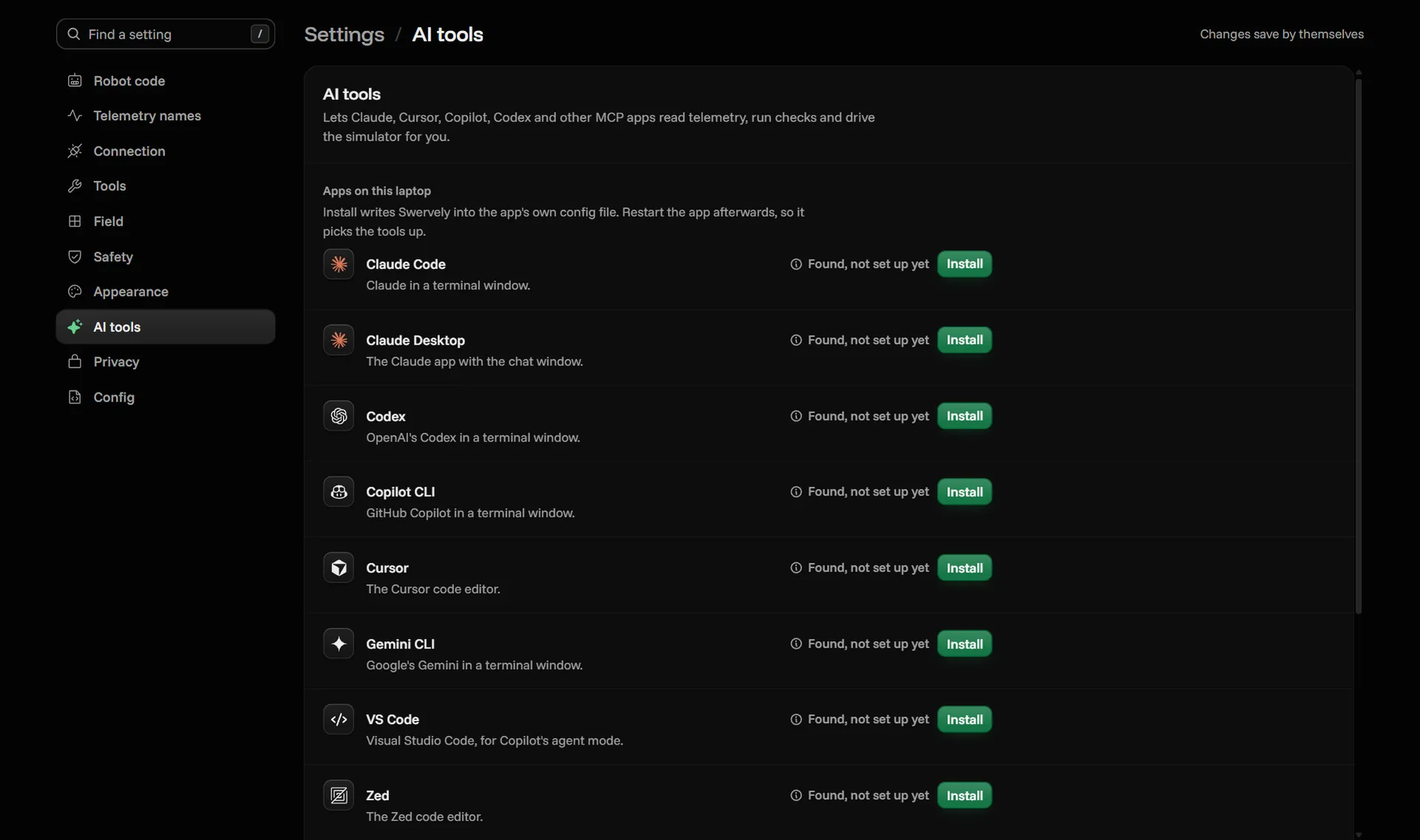
The AI panel uses whichever assistant you already have on the laptop: Claude Code, Codex, Gemini CLI, Copilot CLI or opencode. If you want the Swervely tools in a different app, open Settings, find it under AI tools and click Install. That works for Claude Code, Claude Desktop, Codex, Copilot CLI, Cursor, Gemini CLI, VS Code, Windsurf and Zed. For any other app that speaks MCP there's a Copy button. The AI tools need Node 24 or newer. Nothing else in Swervely does.
The FAQ covers safety on the real robot and what data the app sends.